Introduction
The RuneProfile plugin sends your in-game data - skills, quests, collection log and more - to RuneProfile, giving you a shareable page for your account. This guide covers installing the plugin and everything it can do.
Run into a problem or have a question? Come say hi on Discord.
Join the DiscordInstallation
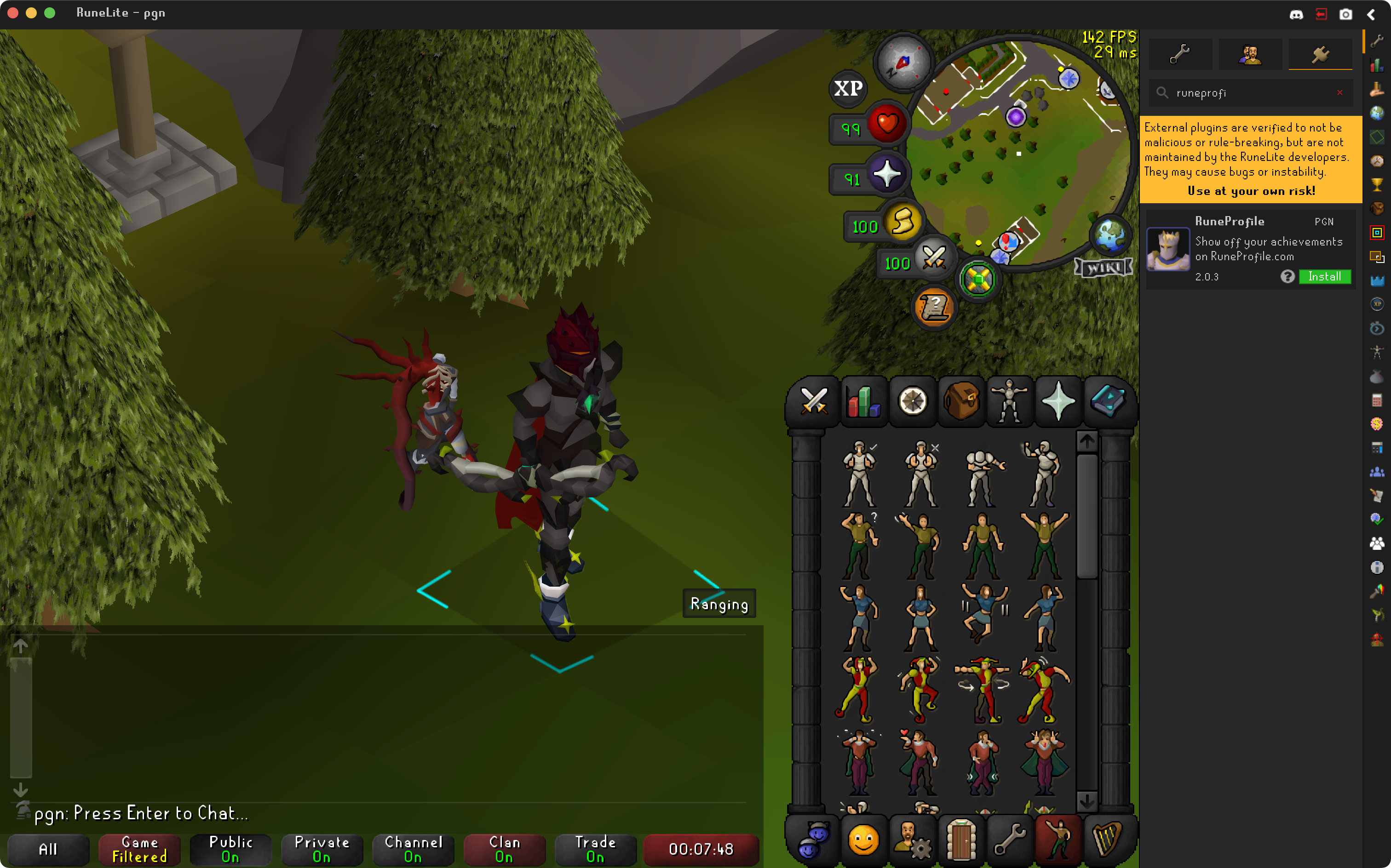
Install RuneProfile straight from the RuneLite Plugin Hub:
- Open your RuneLite client.
- Open the
Plugin Hub(bottom of the plugin list). - Search for
RuneProfile. - Click Install.
Why the data warning?
The Plugin Panel
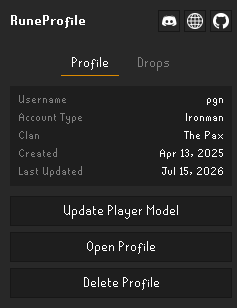
Open the panel from the RuneProfile icon in the RuneLite sidebar. It has two tabs: Profile and Drops.
Profile tab
Shows an account info card - username, account type, clan, and when your profile was created and last updated - with these actions below it:
- Update Player Model - uploads your current character model (see Your Player Model).
- Open Profile - opens your profile in your browser.
- Delete Profile - permanently removes your RuneProfile.
Before your profile exists, this tab instead shows a short guide with a Create Profile button.
Drops tab
Lists the valuable drops shown on your profile and lets you remove ones that were tracked incorrectly - see Valuable Drops.
Creating & Updating Your Profile
Your profile is created automatically
Creating and updating your profile work the same way. With Auto Sync enabled (the default), the plugin updates your profile every 60 minutes automatically.
Updating manually
Don't want to wait for Auto Sync? Update on demand:
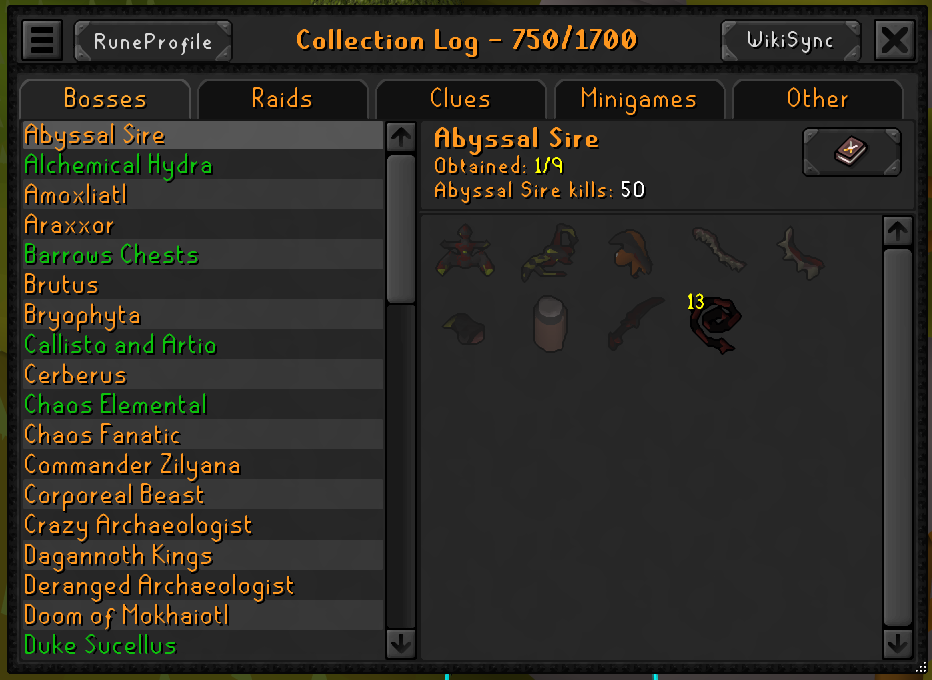
- Open your Collection Log.
- Click the RuneProfile button in the top-left of the window.
The button lives inside the Collection Log window so the plugin can read its data as you sync.
Instant sync on new collection log items
When you obtain a new collection log item, the plugin updates your profile in that moment. This needs one of these OSRS settings enabled:
Collection log - New addition notificationCollection log - New addition popup
Your Player Model
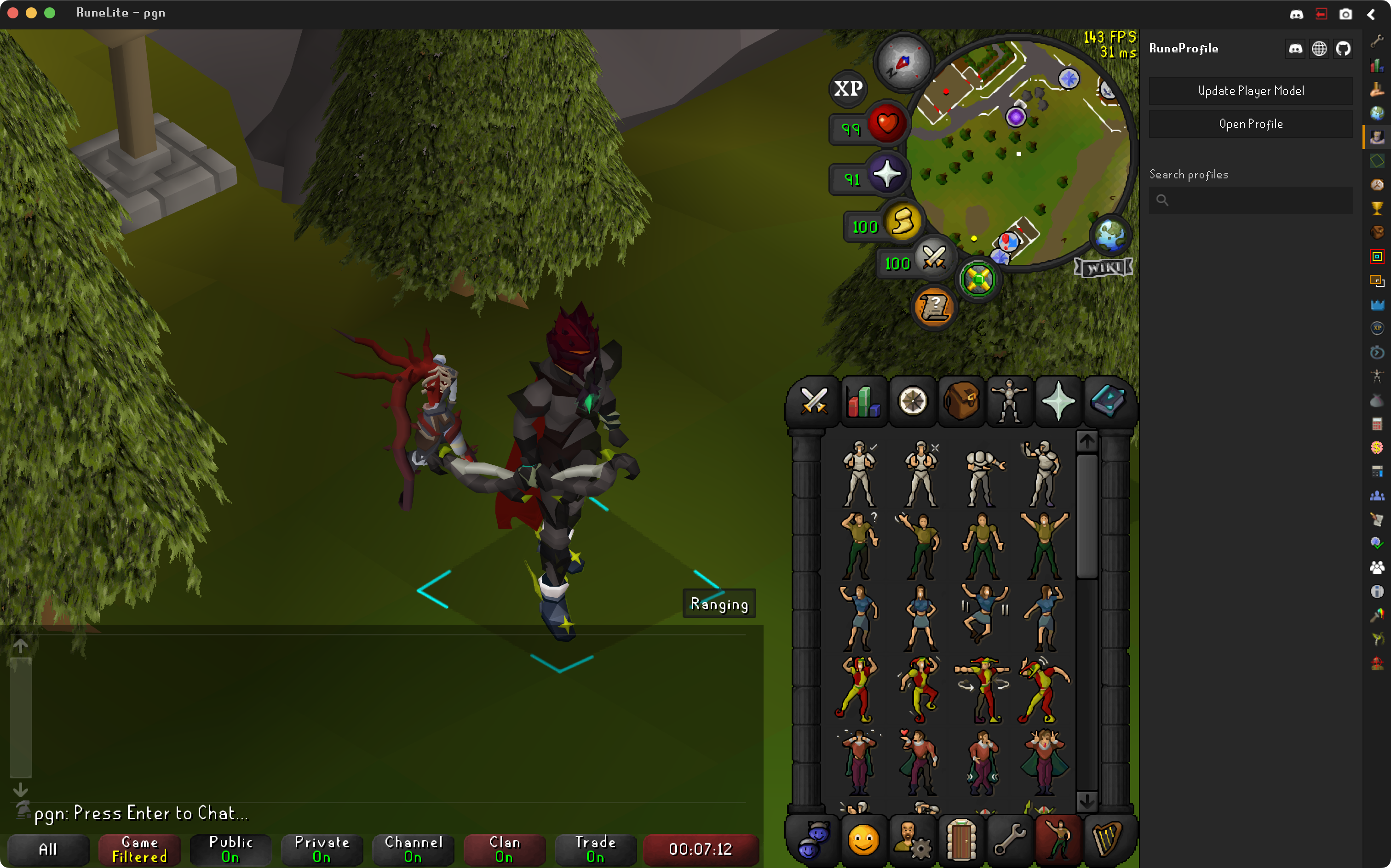
Your profile shows a 3D model of your character. To set or refresh it:
- Open the RuneProfile panel's Profile tab.
- Click Update Player Model.
If a pet is following you, it will appear alongside you on your profile.
Viewing Your Profile
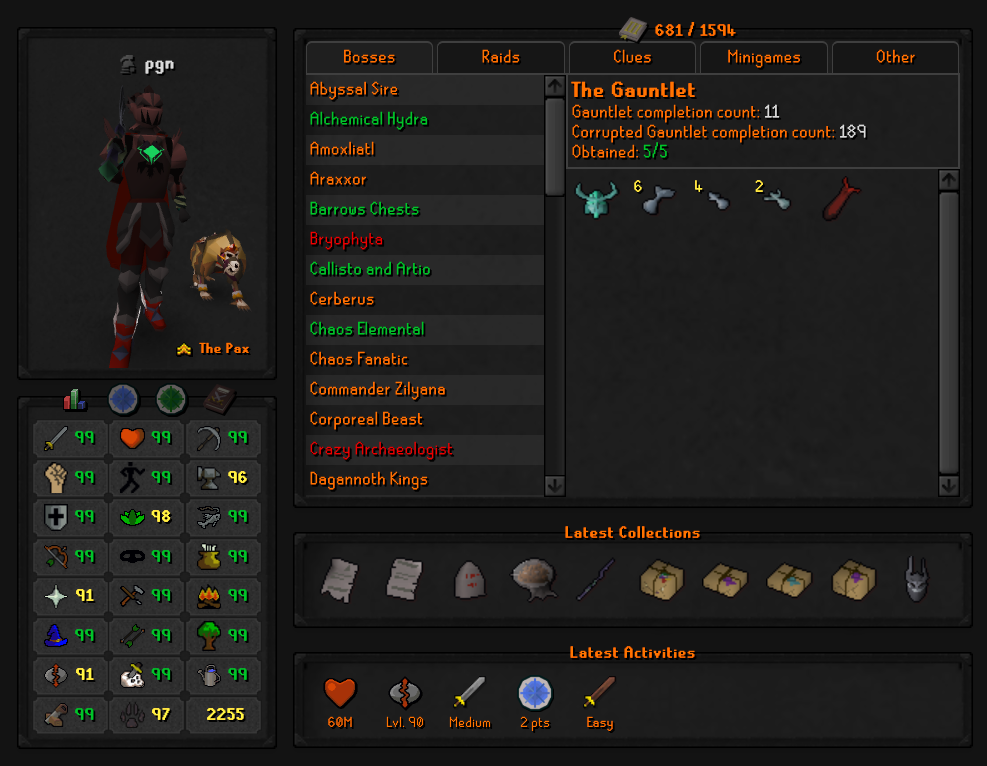
Once you've synced for the first time, your profile is live at runeprofile.com/<your-username>.
You can jump straight there with the Open Profile button on the panel's Profile tab.
Valuable Drops
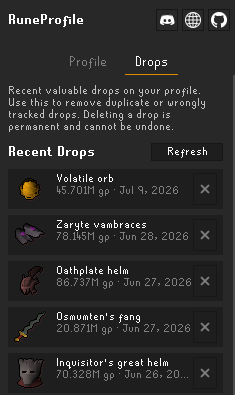
Your profile can showcase your valuable drops in the Latest Activities feed. This relies on the Loot Tracker plugin (installed by default in RuneLite): with it enabled, RuneProfile automatically records any drop worth over 1,000,000 gp.
Managing your drops
The Drops tab in the plugin panel lists your most recent valuable drops with the item icon, name, value and date. Use it to remove a drop that was tracked incorrectly or shows up as a duplicate.
!log command
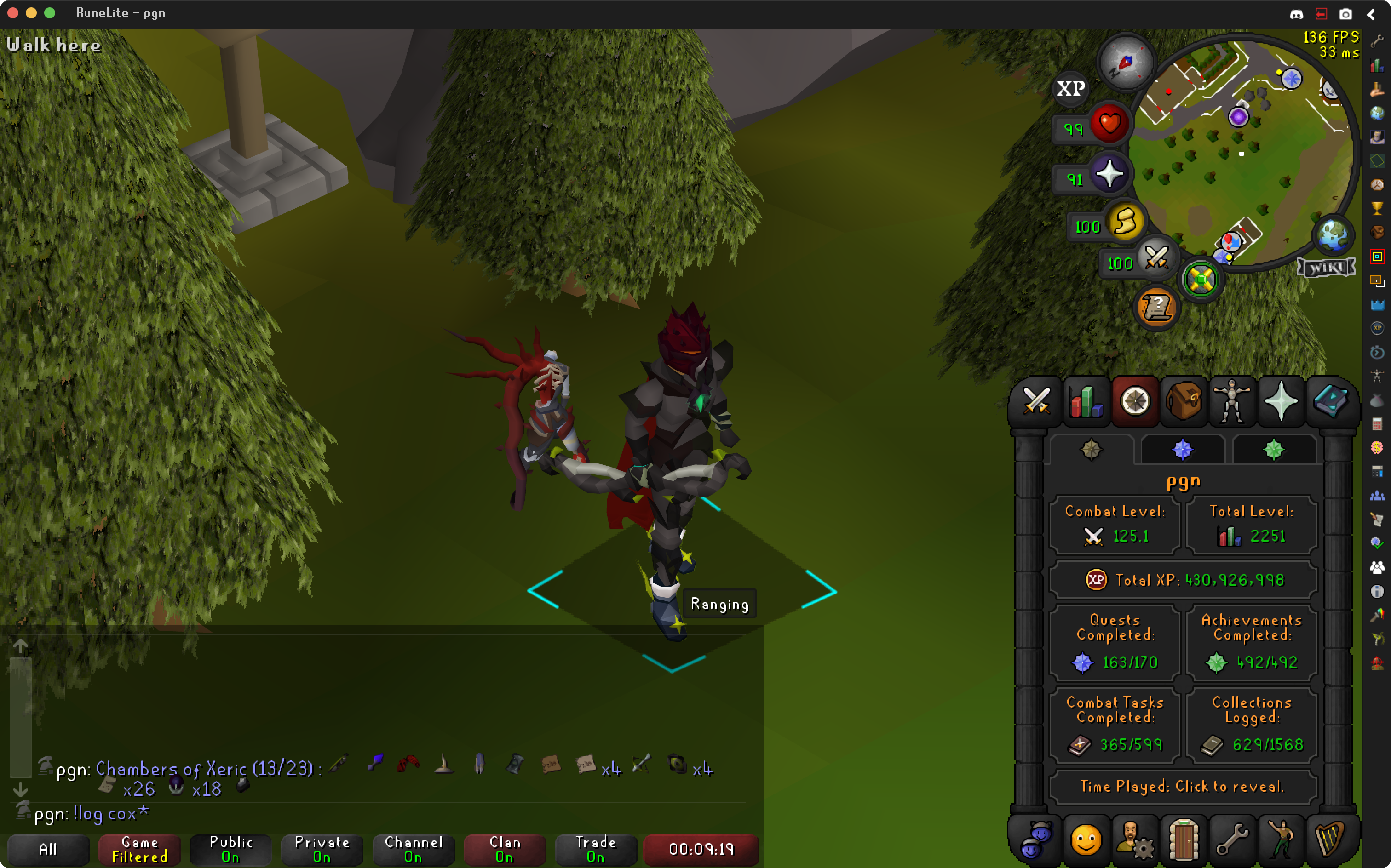
The plugin adds a chat command: !log <collection-log-page>. It posts your obtained items for that page in chat, visible to anyone else running the RuneProfile plugin.
Page aliases work too - e.g. !log cox. See the full list on the Aliases page.
Default Collection Log Page
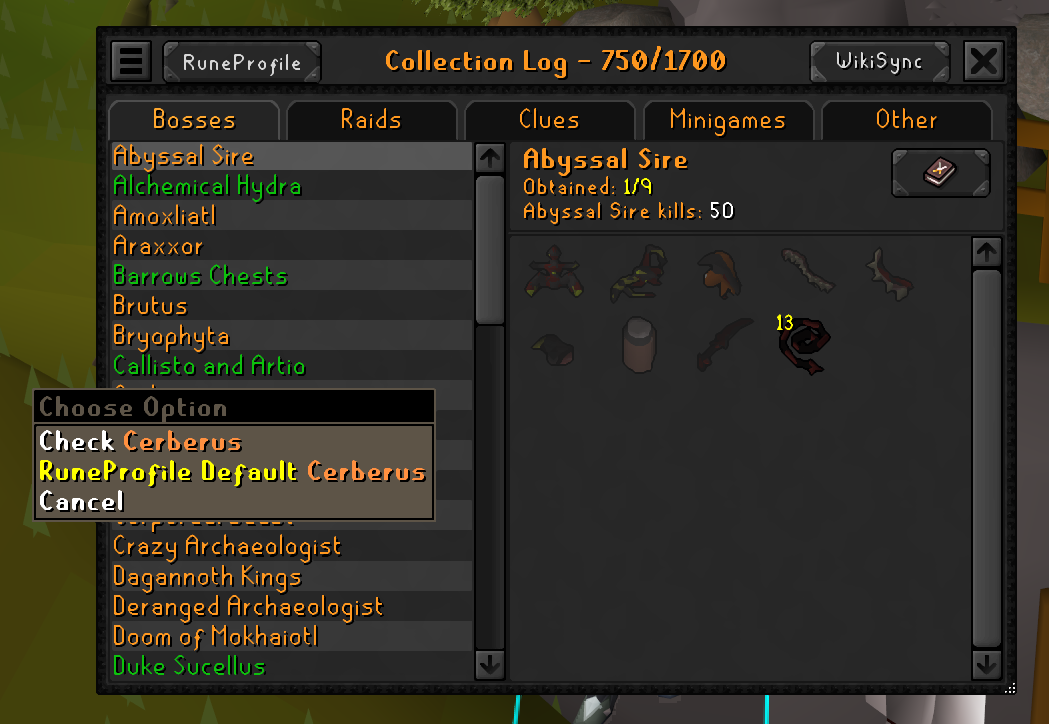
Want a specific collection log page shown first when someone opens your profile? Right-click that page in your Collection Log and set it as the default.
Settings
Configure the plugin from its settings panel in RuneLite. A few options worth knowing:
Sync button
Controls how the sync button appears in the Collection Log (under the Other section):
Left-click(default) - replaces the Search button with the RuneProfile button; Search moves to a right-click option.Right-click- keeps the normal Search button and adds aSync RuneProfileright-click option.Disabled- hides the sync button entirely.
Auto Sync
Enabled by default; keeps your profile updated every 60 minutes. Disable it if you'd rather update only manually.
FAQ
Do I need to create my profile manually?
How do I change or hide the Collection Log sync button?
Sync button setting (under the Other section of the plugin settings). See Settings for the three modes.